Claude Cowork on Windows: Setup and Your First Real Task
Cowork started life as a Mac-first feature, and for a while that meant Windows users were stuck reading about it rather than using it. That gap has closed. Here's the plain-English walkthrough of getting it running on Windows and using it for a real task, not a toy example.
 By Abi Odedeyi · CodeFreeIQ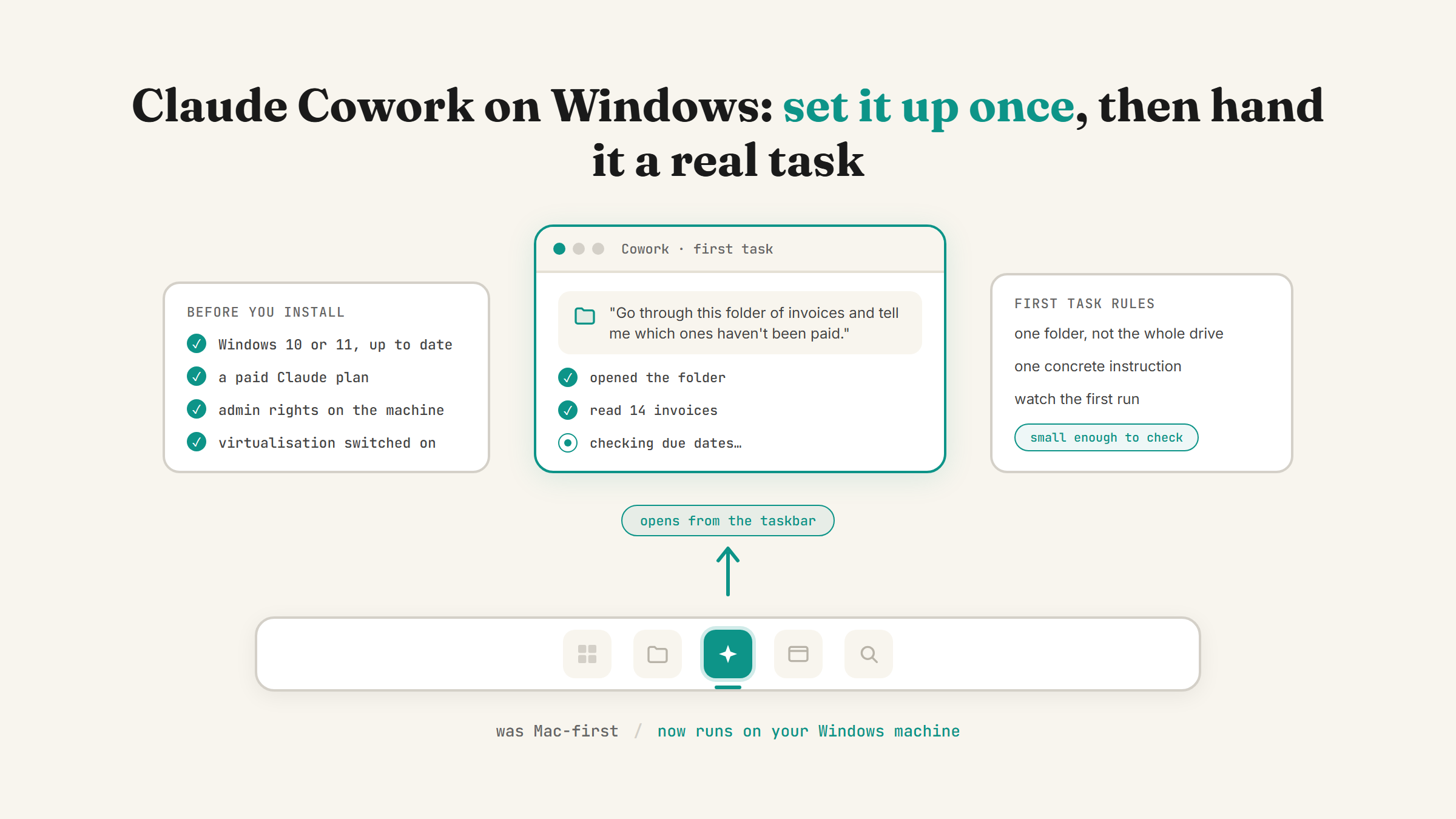
If you're on Windows, you've probably read about Cowork before you could actually use it. It's real now, and the setup has a couple of Windows-specific steps that the general "just open the app" advice skips over. Here's what actually happens, start to finish, plus the first task worth pointing it at once it's running.
What Cowork needs from Windows
Cowork isn't just a chat window, it reads and writes real files on your machine, which means it needs a bit more from your system than Claude Chat does. In practice that means: a recent, up to date version of Windows 10 or Windows 11, a paid Claude plan (Cowork isn't on the free tier), and administrator rights on the machine you're installing it on.
One thing worth checking before you start: Cowork relies on Windows' built-in virtualisation layer to run tasks safely, so it needs an edition and configuration that supports it. If the install fails or the Cowork tab won't switch on, that's the first thing to check, alongside whether virtualisation is enabled in your machine's BIOS. Anthropic's own Windows setup guide has the exact current requirements and is the place to check for the up to date specifics rather than relying on secondhand summaries, since this is the kind of detail that changes as the app updates.
Installing it, step by step
Download Claude Desktop for Windows from the official Claude download page, not a third-party mirror or a link from a random blog post. Run the installer, sign in with your Claude account, and if you're on a paid plan you'll see the Cowork tab appear alongside Chat.
If the tab doesn't show up, the most common cause is the plan, not the install. Cowork needs Pro, Max, Team or Enterprise. Check your plan under account settings before you assume the installer is broken.
Restart after installing. Windows installers that touch virtualisation settings sometimes need a restart to fully take effect, so if Cowork opens but a task won't start, that's worth trying before anything more complicated.
Your first real task
The mistake most people make on any new AI tool, Windows or Mac, is starting with something too vague. "Help me be more organised" gives Cowork nothing to work with. A real, bounded task does.
Open the Cowork tab, point it at a specific folder, not your whole Documents drive, and give it one concrete instruction. Something like: "Go through this folder of client invoices and tell me which ones haven't been paid yet, based on the due dates in the filenames." That's specific enough for Cowork to actually do something useful with, and small enough that you can check its work in a couple of minutes.
Watch it work the first time rather than walking away. Cowork shows you what it's doing as it goes, reading files, checking things, working through steps, and that first run is your chance to catch anything it's misunderstanding before you trust it with something bigger.
What trips people up on Windows specifically
Antivirus and endpoint protection software can flag Cowork's file access as unusual, especially the first time it touches a new folder. If a task stalls or a file operation silently fails, check whether your antivirus software is prompting for a permission you missed, particularly on a work laptop with IT-managed security software.
Company-managed machines are the other common snag. If your Windows laptop is managed by an IT department, virtualisation settings and admin rights might be locked down centrally, and no amount of retrying the installer will fix that from your end. That's an IT ticket, not a Cowork problem.
Folder permissions matter too. Point Cowork at a folder you don't actually have full read and write access to (a shared network drive with restricted permissions, for instance) and it'll hit the same wall you would trying to edit those files by hand.
Where this fits with the rest of Cowork
Once the basic setup is working, the same features that make Cowork useful on Mac apply here too: connectors to plug it into your inbox and calendar, and scheduled tasks so it keeps running the same job on a repeat without you opening the app. None of that is Windows-specific, it's the same Cowork underneath. Getting the install right is just the first hurdle, not a different product.
If you're still deciding whether Cowork is even the right level of Claude for your work, the full walkthrough of Chat, Cowork and Code is worth reading first.
FAQ
Is Claude Cowork available on Windows?
Yes. Cowork now runs on Windows as well as Mac, inside the Claude Desktop app. It needs a paid Claude plan (Pro, Max, Team or Enterprise), and the Windows install has a couple of extra requirements around virtualisation and administrator rights that the Mac version doesn't need. Check Anthropic's current Windows setup guide for the exact specifics before you install, since requirements can shift as the app updates.
Why can't I see the Cowork tab after installing Claude Desktop on Windows?
The most common reason is your plan, not the install. Cowork requires Pro, Max, Team or Enterprise, so check your account's plan under settings first. If you're on a paid plan and still don't see it, a restart after install and a check of your machine's virtualisation settings are the next things to try.
Do I need administrator rights to install Cowork on Windows?
Yes, for a full install with Cowork enabled. If you're on a company-managed laptop without local admin rights, you'll likely need IT to run the install or adjust permissions, since virtualisation settings on managed machines are often locked down centrally.
What's a good first task to try in Cowork on Windows?
Something specific and bounded on a small folder, not a vague instruction on your whole drive. A folder of invoices, a set of client documents to summarise, or a batch of files to rename consistently are all good starting points. Watch the first run closely so you can catch any misunderstanding before you hand over something bigger.
Once Cowork is running properly, the next worthwhile step is going through the nine settings that turn Claude into your team, so the rest of your setup matches how you actually work, not just what installed by default.
Want Cowork set up properly on your machine?
Book a strategy call and I'll walk through the install live, check your setup is actually ready for it, and point it at your first real task.
Book a strategy call →One working AI system in your inbox, weekly
The Operator's AI: the email edition of everything I publish here, plus the Free AI Bundle the moment you join.
Subscribe free →