Can Claude Cowork Use a Browser? What It Does on the Web for a Small Business
Claude Cowork now opens its own browser inside a task and works through a website on its own, clicking, filling forms, and reading pages while you watch. Here's what that's actually good for in a small business, which plans have it, and where Anthropic says not to point it.
 By Abi Odedeyi · CodeFreeIQ
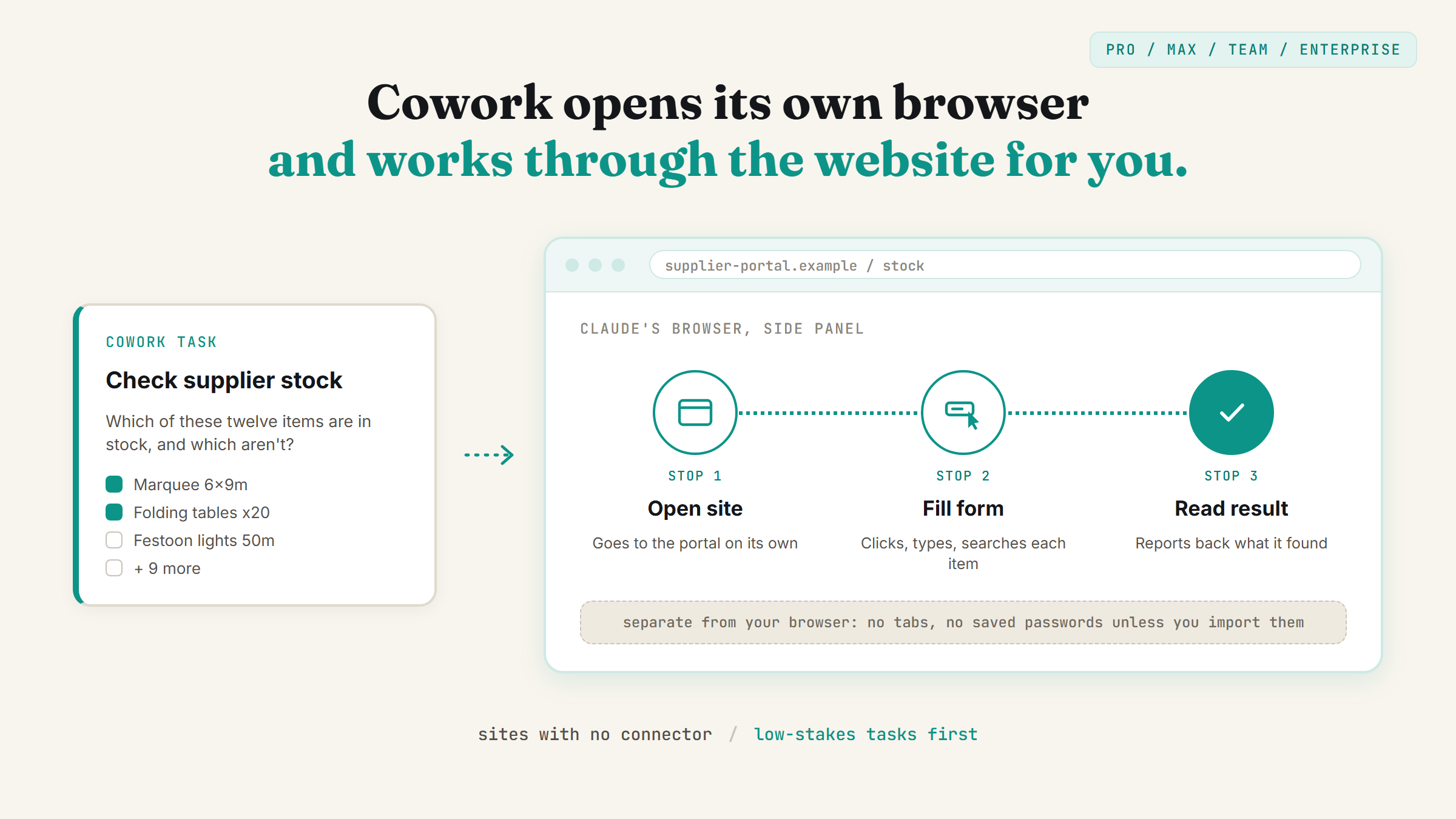
Yes. Claude Cowork can now open a browser inside a task and work through a website itself: opening pages, clicking buttons, filling in forms, and reading what's on screen, all in a side panel you can watch while it runs. It's built for exactly the kind of web task that doesn't have a proper connector yet: a supplier portal, a vendor dashboard, a form a website makes you fill in by hand.
What the browser actually does
It's a browser Claude drives, not a browser you drive together. When a Cowork task involves a website, a browser window opens on its own in the side panel next to the task. Claude navigates to the page, reads what's there, clicks the controls it needs, types into fields, and reports back what it found or did, the same way it reports back on a file it just edited.
There's nothing to install. The browser opens on its own the moment a task needs a website, the same way Cowork reaches for a connected tool when a task needs one. If you've read what Claude Cowork actually is, this is the same pattern: point it at a task, let it reach for whatever it needs to finish it.
It's separate from your own browser, on purpose
Claude's browser isn't your browser. It's a completely separate one, so Claude doesn't use your open tabs or the logins saved in your own browser unless you explicitly choose to import them. That import is optional and site by site, and banking, email, and single sign-on sites are left unticked by default, so you'd have to deliberately add them.
That separation is the right default for a business tool. It means pointing Cowork at a supplier portal doesn't hand it your whole browsing history along with it.
Which plans actually have it
Pro and Max plans get the built-in browser in Cowork, through Claude Desktop on Mac or Windows, with Linux in beta. Team and Enterprise plans get it too, unless an owner on the account has turned it off. If your team is on one of those plans and the browser isn't showing up in a task, that setting is the first thing to check with whoever owns your Claude admin, not a sign the feature doesn't exist on your plan.
Claude Desktop also needs to stay open and online for the built-in browser to keep working, even when you're running the Cowork session from the web or your phone. If a browser-based task stalls, check that the desktop app is still running before assuming something's broken.
What it's actually good for in a small business
The pattern worth noticing: this is for websites that don't have a connector, not a replacement for one. If Claude already connects to Gmail or your calendar directly, that's still the better route. The browser is for everything else: the supplier portal, the industry directory, the form on a council or licensing site that only exists as a web page.
A fictional example: Harrow & Vale, a four-person events hire business, has three supplier portals it logs into every week to check stock on hired equipment, each one a different login, each one a slightly different layout. Pointed at one portal with a bounded task ("check which of these twelve items are marked in stock and tell me which aren't"), Cowork's browser opens the portal, works through the list, and reports back what it found, the same few minutes of clicking someone on the team used to do by hand. Research across sites is the other common use. Checking a handful of competitor pages, pulling figures off a dashboard that has no export button, or gathering prices across a few supplier sites are all the kind of task this is built for: reading, not transacting.
Where Anthropic itself says not to use it
Worth repeating plainly, because it's Anthropic's own guidance, not a cautious add-on from me: the built-in browser isn't meant for sensitive information. Anthropic specifically advises against using it to manage or take actions involving financial accounts, medical information, or other people's personal data. There are safeguards against prompt injection (instructions hidden in a web page trying to redirect what the browser does), but Anthropic is upfront that they reduce the risk rather than eliminate it, and suggests starting with sites you trust and stopping the task if anything looks wrong.
In practice, that means: a supplier stock check or a public directory lookup is a sensible first task. Logging into your bank or filing something with sensitive client data on a page you don't fully trust is not, browser or no browser.
How this is different from Claude in Chrome
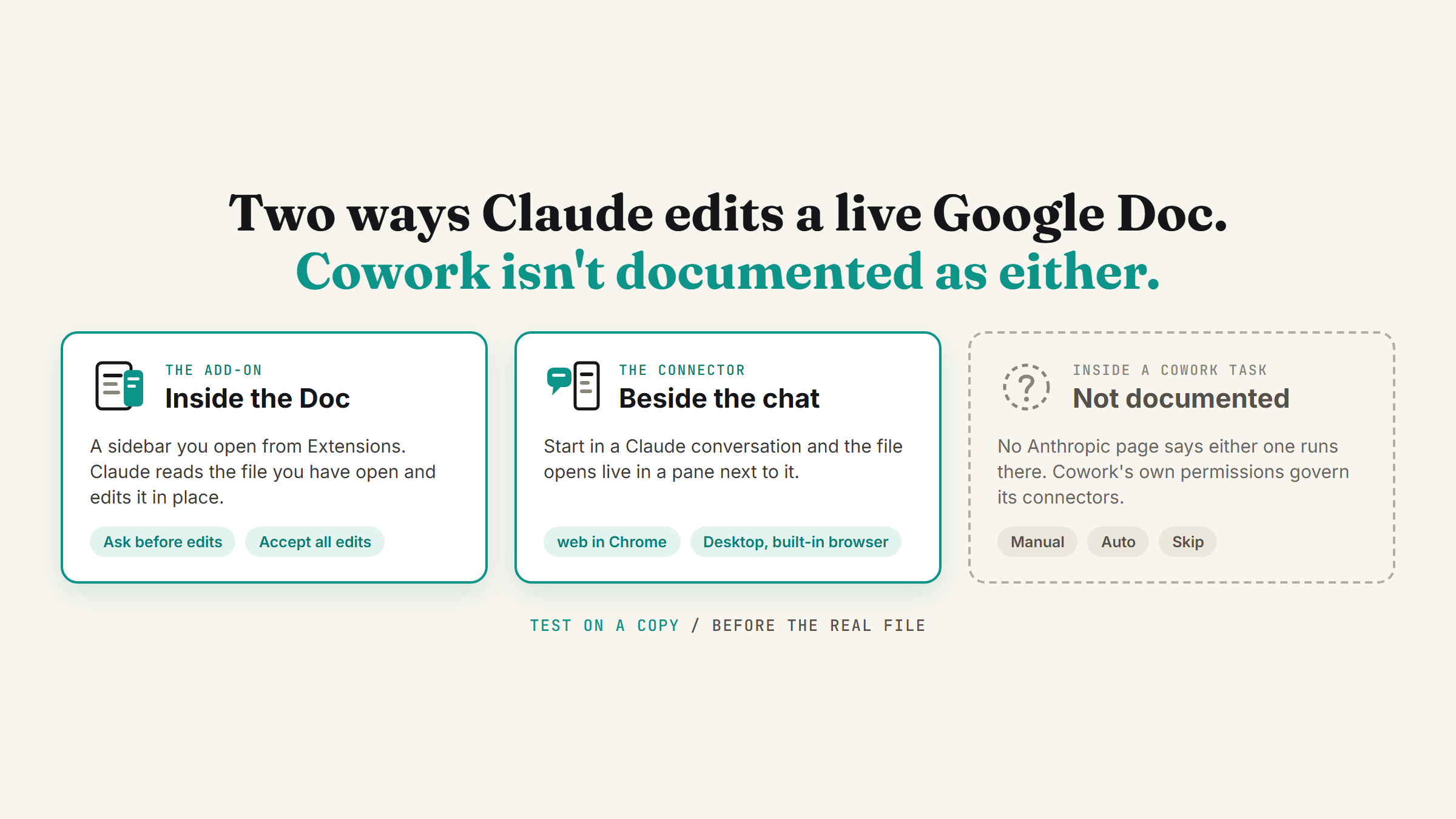
If you've also heard of Claude in Chrome, a separate browser extension, it's worth not confusing the two. Claude in Chrome works in your own Chrome, on the page you're viewing, with the accounts you're already signed into. The built-in Cowork browser is a separate one Claude opens and drives itself, with nothing to install. You can choose which one Cowork prefers under Settings, then Cowork, then Preferred browser, and Claude sticks to that unless you ask for the other one by name.
Getting started without overdoing it
Pick one web task with no login required first, the same advice I give for every new Cowork feature. A public supplier directory, a competitor price check, or a form that doesn't touch anything sensitive is the right place to learn how it behaves before you point it at anything that matters. If you're not sure which task in your week is actually worth handing over, running a free AI time audit is the fastest way to find it, and the nine settings that turn Claude into your team covers the rest of the setup worth getting right first.
Once you've tried it on one low-stakes task, the real question is whether it's worth scheduling on a repeat. Book a strategy call and we'll work out whether a web task in your week is worth automating, or whether it needs a human watching every time.
FAQ
Can Claude Cowork actually use a web browser?
Yes. Cowork can open a built-in browser inside a task, navigating pages, clicking, typing, and filling forms in a side panel while you watch. It opens on its own whenever a task involves a website, with nothing to install.
Which Claude plans have the Cowork browser?
Pro and Max plans have it, through Claude Desktop on Mac or Windows, with Linux in beta. Team and Enterprise plans have it too unless an owner has turned it off. If it's missing on one of those plans, check that admin setting before assuming it's unavailable.
Does the Cowork browser see my own passwords or browsing history?
No, not by default. It's a separate browser from the one you use day to day, with no access to your tabs or saved logins unless you explicitly import them site by site, and banking, email, and single sign-on sites are left unticked in that import by default.
What shouldn't I use the Cowork browser for?
Anthropic specifically advises against using it for anything involving financial accounts, medical information, or other people's personal data. It's built for reading and acting on public or low-stakes pages, like a supplier portal or a research task, not for handling sensitive logins on sites you don't fully trust.
Want help finding the right first web task for Cowork?
Book a strategy call and I'll help you pick one web task worth handing over, check your plan actually has the browser, and set it up live.
Book a strategy call →One working AI system in your inbox, weekly
The Operator's AI: the email edition of everything I publish here, plus the Free AI Bundle the moment you join.
Subscribe free →